The myhyundai login page is the control surface for several Hyundai owner services, including vehicle information, maintenance records, connected features, roadside assistance details, and account preferences. When it works, it is unremarkable. When it fails, the experience can resemble a small software incident with no useful error log. This guide explains how to sign in, recover access, and document problems before deciding whether the issue is your account, browser, app, or vehicle data.
What the Hyundai owner account provides
A Hyundai owner account can connect your personal profile with one or more vehicles. Depending on the model, year, region, and services enabled, the dashboard may show warranty information, maintenance reminders, digital manuals, service scheduling options, and links to connected-car features. Some vehicles also use the same credentials for a mobile application that supports remote commands, vehicle status, location features, or service notifications.
The exact menu can differ between a 2022 Tucson, a 2024 Ioniq 5, and an older Elantra. That is not necessarily a defect. Hyundai has changed portions of its web and mobile experience over time, while connected services can also depend on a compatible subscription and an active vehicle modem. Treat the account page as a software layer, not as proof that every feature is available on every car.
Before opening the myhyundai login page, have the email address used during registration, your current password, and access to the associated phone or inbox. If you recently purchased a used Hyundai, confirm that the previous owner’s connected services were removed and that your vehicle identification number is attached to your profile. A vehicle can be physically yours while its digital ownership record is still stuck in yesterday’s account.
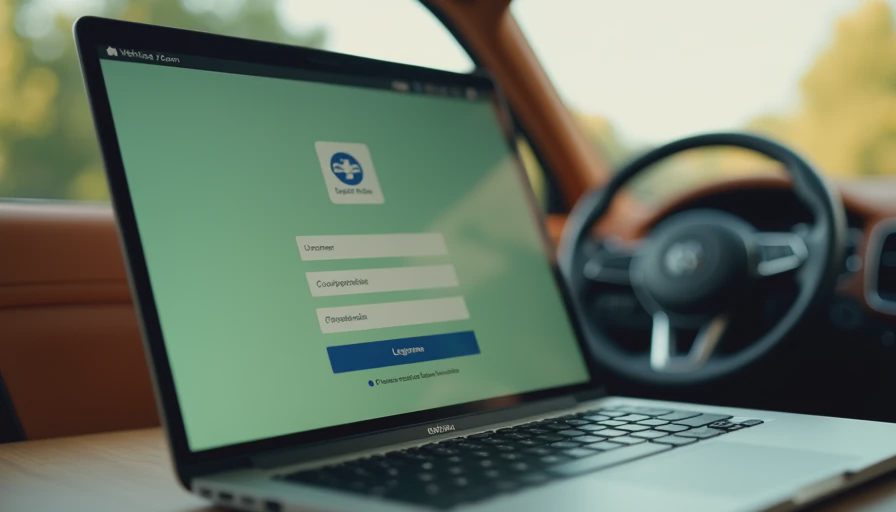
How to complete myhyundai login without creating another problem
Start from Hyundai’s official website or the official Hyundai mobile application rather than an advertisement, copied link, or message promising an urgent account warning. Enter your email address carefully, then enter the password manually if autofill has been unreliable. Password managers are useful, but an old saved credential can repeatedly submit the wrong value with impressive efficiency.
If the password fails, use the account recovery option and follow the email instructions. Check spam, promotions, and filtered folders before requesting several more messages. Multiple requests can create a queue of expired reset links. Open the newest message, use the link once, and create a password that is unique to the Hyundai account. Do not send your password or one-time verification code to anyone claiming to provide support through social media.
After signing in, review the profile email, phone number, vehicle list, and communication preferences. If a vehicle is missing, look for an option to add it using the vehicle identification number. Type the VIN from the dashboard plate or registration document, not from memory. One incorrect character can make the system report that a vehicle cannot be found, even when the account itself is healthy.
Troubleshooting a failed sign-in
When myhyundai login fails, classify the symptom before changing five settings at once. An “incorrect password” message points toward credentials or account recovery. A blank page, endless loading spinner, or sudden redirect points more toward browser data, an outage, a blocked script, or an expired session. A successful sign-in followed by missing vehicle details is a different problem from being unable to authenticate.
Try these checks in sequence. First, open a private browser window and attempt the sign-in there. Second, disable an aggressive ad blocker or privacy extension for the official Hyundai domain. Third, clear cookies for that domain rather than deleting every saved browser setting. Fourth, try a current version of Chrome, Safari, Edge, or Firefox on a different network. A home router with filtered DNS can break one service while every other website appears normal.
If the mobile application fails but the website works, update the app through the official app store, force-close it, and sign in again. If both channels fail at the same time, record the approximate time, device, operating system, browser version, and exact error text. A support request containing those details is considerably more useful than “it does not work,” which is technically accurate but diagnostically empty.

Connecting a vehicle and checking digital services
Once myhyundai login succeeds, inspect the vehicle record before testing remote functions. Confirm the VIN, model, trim, and displayed mileage where available. If the information is wrong, take a screenshot and avoid repeatedly removing and re-adding the vehicle. Repeated changes can create duplicate records or delay synchronization between the owner portal and connected-service system.
Remote start, door locking, vehicle status, and location functions can require separate enrollment, compatible hardware, a supported plan, and adequate cellular coverage. A login proves that the account accepted your credentials; it does not prove that the car is online. If a command remains pending, check whether the vehicle is parked in a location with weak reception, whether the ignition is off, and whether the service subscription is active.
Maintenance information deserves a similar reality check. A portal reminder is useful for planning, but it should not replace invoices, dealership records, or the service booklet. Save receipts after an oil change, tire rotation, brake inspection, or recall repair. Digital records can lag, especially when work was completed by an independent shop that does not automatically report the visit to Hyundai.
Account security and privacy basics
Use a long, unique password and enable multifactor authentication if the account offers it. Protect the email account connected to your Hyundai profile because password resets generally depend on that inbox. Review logged-in devices and remove any phone or browser you no longer control. This matters more when a vehicle is sold, traded, leased to another driver, or shared across a household.
Connected-car services can expose location history, vehicle status, and remote-control capabilities. Before selling a Hyundai, remove the vehicle from your profile, cancel applicable connected subscriptions, delete the mobile app from your phone, and follow the vehicle’s infotainment reset procedure. A factory reset of the screen may not automatically remove every server-side association, so complete both the vehicle and account steps.
When to contact support
Contact Hyundai support when recovery emails never arrive, the VIN is rejected despite careful entry, a previous owner remains connected, or your account shows incorrect personal or vehicle information. Include the email address on the account, VIN details only through an official support channel, device and browser information, timestamps, and screenshots with passwords or security codes hidden.
If you are buying a used Hyundai, complete this verification before relying on connected features. Confirm that the seller has removed the vehicle, create your own account, test the app while near the car, and verify that the displayed vehicle matches the actual VIN. A ten-minute check can prevent weeks of confusion after the title changes hands.
The cleanest workflow is simple: use the official access point, recover credentials once, verify the vehicle record, test connected services, and preserve evidence when something breaks. The myhyundai login should be a doorway to useful ownership data, not the entire diagnostic process. When the portal misbehaves, a timestamp, version number, screenshot, and reproducible sequence turn frustration into a support ticket someone can actually investigate.


No letters yet — be the first guest to write.