An over-the-air update should improve a vehicle without turning the owner into unpaid quality assurance. This guide to air 2.6 update problems and fixes lucid focuses on reproducible symptoms, safe recovery steps, and evidence worth saving before contacting Lucid support. The exact behavior can depend on vehicle configuration, connectivity, account state, and the software build shown in the cockpit, so start by recording the version rather than trusting a screenshot from an owner group.
What to record before changing anything
Write down the vehicle model, delivery year, current mileage, software version, battery state, and the date and time of the failure. Include whether the vehicle was parked indoors, outside, connected to Wi-Fi, or using its cellular connection. A useful entry looks like this: Lucid Air, software 2.6, 58 percent battery, garage Wi-Fi, driver profile A, navigation froze at 7:42 p.m. during a route calculation.
This detail separates a repeatable defect from a one-time hiccup. Note whether the center display, driver display, steering-wheel controls, audio, climate controls, phone projection, charging screen, or driver-assistance interface is affected. Take a short video with the vehicle stationary. Do not film while driving, and do not attempt to operate a frozen screen at highway speed. A timestamped phone photo of the version page and a written reproduction sequence are more valuable than ten posts saying that the update is cursed.
Also check whether the issue appeared immediately after installation or several hours later. Some systems rebuild indexes, refresh maps, or reauthenticate services after an OTA package. That does not excuse a persistent regression, but timing helps support staff distinguish installation completion from a later connectivity or profile problem.
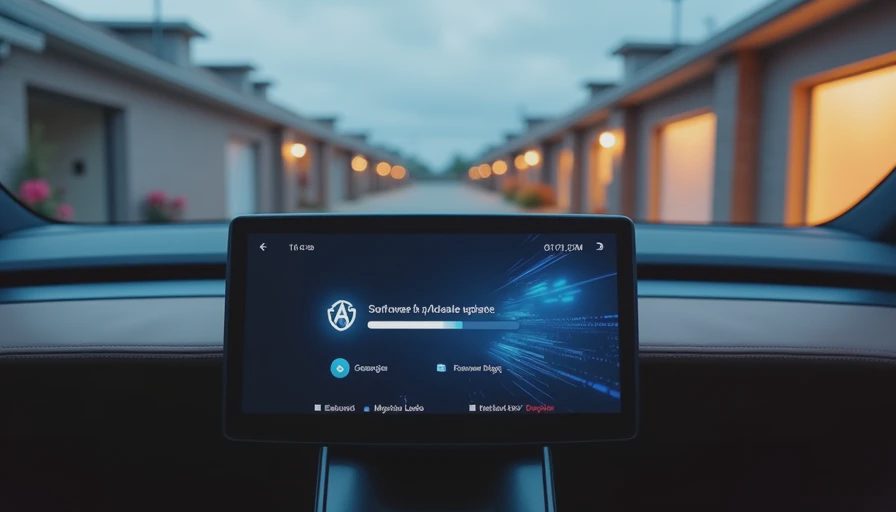
Common air 2.6 update problems and fixes lucid owners report
The first cluster involves a slow, blank, or intermittently unresponsive center display. Park the vehicle, place it in a safe state, and allow several minutes after startup before judging performance. If the screen remains stuck, perform the manufacturer-approved display or vehicle restart procedure from the owner documentation. Avoid disconnecting the low-voltage battery as a casual experiment; modern vehicles use that battery for numerous control systems, and an improvised power cut can create new faults.
A second cluster affects audio, Bluetooth, phone projection, or saved driver preferences. Confirm that the correct driver profile is active, then remove and re-pair the phone if the failure is limited to one device. Test a second phone before blaming the vehicle. If audio works through the vehicle radio but not through projection, the likely fault boundary is different from a complete infotainment failure. Record both results.
Charging and climate complaints need the same discipline. A schedule that disappears after an update could be a profile or account synchronization issue, while a charging session that stops at the same percentage repeatedly deserves a service record. Capture the charger type, start time, state of charge, outside temperature, and any displayed message. Never disable a warning simply to make the session continue.
A controlled recovery sequence
For air 2.6 update problems and fixes lucid, use the least invasive step first. Step one is a normal vehicle shutdown and restart after the car is safely parked. Step two is to confirm that the software installation actually completed and that the vehicle is not waiting for an additional restart. Step three is to verify connectivity, because an incomplete account handshake can make cloud-dependent features appear broken.
Step four is a profile comparison. Test the same function under the primary profile and a secondary profile only while parked. If one profile fails and another works, save that observation before deleting anything. Step five is to test the feature without a paired phone, route, saved destination, or custom charging schedule. This creates a clean baseline. Step six is to reproduce the issue twice and document the result.
Do not factory-reset the vehicle before preserving settings, screenshots, and logs. A reset can erase useful evidence while leaving the underlying defect untouched. It is a final software troubleshooting action, not the automotive equivalent of turning a problem off and hoping it develops manners.
When the symptom points to hardware or service
Software troubleshooting should stop when a warning involves braking, steering, restraint systems, high-voltage battery behavior, charging safety, or loss of a required driving display. Park safely and contact Lucid support or an authorized service location. A frozen entertainment screen is inconvenient; an unavailable instrument display is a different category entirely.
Repeated reboots, unexplained battery drain while parked, charging interruptions across multiple stations, or a screen that remains blank after the approved restart procedure also justify escalation. Tell the service advisor exactly what you tested. “It is broken” is emotionally accurate but technically underpowered. “The center display failed three times on two days, with no phone connected, after a cold start at 62 percent charge” gives a technician something to investigate.
For air 2.6 update problems and fixes lucid, ask whether the vehicle needs a software reflash, a module diagnostic, or inspection of the low-voltage system. Do not demand a particular part based only on an online theory. Ask for the work-order description, the software version installed, and whether the issue was reproduced. Those records help if the symptom returns and make future ownership research far less dependent on forum memory.
How to build an evidence-quality report
Use one issue per report. Start with the build number and hardware context, then state the expected behavior, actual behavior, reproduction rate, and recovery result. Include whether the fault survives a restart. Attach a short video, but remove personal addresses, phone notifications, and account identifiers before sharing it publicly.
A compact report might read: “Lucid Air, software 2.6, center display. Expected navigation map to load within normal startup period. Actual result: black screen for four minutes, then map appeared without saved destinations. Reproduced twice on June 14, both times with Wi-Fi connected. Normal restart restored the map once; profile switch did not. No warning lights.” That format is dry, searchable, and far more useful than a dramatic headline.
For air 2.6 update problems and fixes lucid, preserve the original files and note when each change occurred. If a later update resolves the behavior, report the before-and-after conditions instead of declaring the entire platform cured. A fix that works only with a clean profile is not equivalent to a fix that survives normal settings.
A practical decision point for owners and buyers
If the issue is isolated, reversible, and limited to media or personalization, document it and monitor the next software release while using the approved workaround. If it affects charging, displays, safety systems, or vehicle access, escalate promptly. Owners should also review service history before buying a used Lucid Air. Ask for the current software version, recent repair invoices, unresolved warning messages, and a demonstration of charging, navigation, climate control, and both displays.
The useful conclusion from air 2.6 update problems and fixes lucid is not that every vehicle with the update is defective. It is that OTA credibility depends on observable results. Version numbers, reproduction steps, timestamps, and recovery behavior turn frustration into evidence. That evidence helps technicians fix the right layer, helps owners avoid risky improvisation, and gives the next buyer a clearer picture than a comment thread ever will.


No letters yet — be the first guest to write.