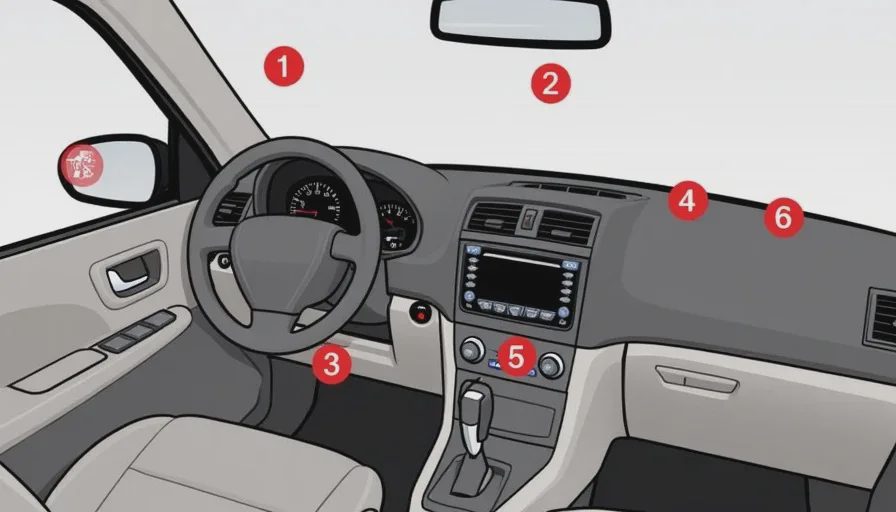
The Context
Touchscreen cockpits offer flexibility, OTA‑updatable layouts, and a sleek aesthetic. They also demand visual attention, precision, and haptic emptiness – three things you don't have in abundance when you're merging onto a highway at 110 km/h with a screaming toddler in the back.
Human factors research (e.g., the AAA Foundation’s 2020 study on infotainment distraction) shows that touchscreen‑based tasks can take up to 40% longer than physical button equivalents, and require your eyes off the road for dangerously extended periods. The NHTSA recommends that any glance away from the road should last no more than 2 seconds. Touchscreen menus often exceed that by a factor of 2‑3.
I've been logging my own “frustration episodes” – moments where I fumbled with a screen while driving. After categorising them, 12 scenarios consistently stood out as non‑negotiable for physical controls. Here they are.
The 12 Scenarios – Why Touchscreen Fails
1. Emergency Defrost / Demist
The moment: You’re on a wet, cold morning. In 10 seconds, the windscreen fogs completely. You need max defrost NOW.
Touchscreen failure: At least 2‑3 taps to find the climate menu, then select defrost, then set fan to high. Your eyes are off the road for 4‑5 seconds.
Physical button solution: One dedicated, large, backlit button on the dash – press, done. You can do it by feel.
2. Volume Control – When You Need an Immediate Mute
The moment: A sudden warning tone from the ADAS, or a podcast with an unexpectedly loud segment, or a phone call you need to hear immediately.
Touchscreen failure: Slider or +/- buttons on the screen are small, require precise aiming, and often don't provide tactile feedback. You might overshoot or miss.
Physical button solution: A rotary knob on the steering wheel or centre console – you can grab it blindly, rotate, and the tactile detent tells you the change. Also, a physical mute button is a lifesaver.
3. Hazard Warning Lights (Emergency Flashers)
The moment: You need to warn traffic behind of a sudden obstacle. This is a time‑critical safety action – often in a panic.
Touchscreen failure: In some new EVs, the hazard light button is a capacitive area on the screen or a small haptic panel near the roof. In a stress situation, your finger may not hit it correctly.
Physical button solution: A large, red, tactile triangle button that you can slap without looking. It’s been a standard for decades for a reason.
4. Climate Temperature Adjustment – While Cornering
The moment: You're on a twisty road, the cabin suddenly feels too warm, and you need to drop the temperature by 2°C.
Touchscreen failure: You have to tap the tiny +/- or slide a bar, while your hand is bounced by the steering feedback. Miss the target, and you might open the seat heating instead.
Physical button solution: A dedicated rotary dial for temperature with a positive detent – you can twist it one click at a time without looking.
5. Fan Speed Adjustment – When Windows Start Fogging
The moment: The windscreen begins to mist up mid‑drive. You need to increase fan speed quickly.
Touchscreen failure: Buried in the climate menu, often requires opening a sub‑panel. By the time you find it, visibility has worsened.
Physical button solution: A row of fan speed buttons with distinct shapes (e.g., fan icon with up/down) that you can feel.
6. Steering Wheel Adjustment (Tilt/Telescope)
The moment: You've just swapped drivers, and the steering wheel position is off. You need to adjust it before pulling away.
Touchscreen failure: In some vehicles, this is buried in vehicle settings > controls > steering. That's 3‑4 menus, all while you're parked – okay, but still inconvenient. But if you need to adjust while driving (e.g., reach comfort), it's impossible.
Physical button solution: A physical lever under the steering column – you unlock, move, lock, all by feel.
7. Side Mirror Adjustment / Folding
The moment: You need to fold your mirrors to pass through a narrow gap, or adjust the angle for parking.
Touchscreen failure: Usually in a “controls” menu, with virtual joystick. You have to look at the screen to know where to tap.
Physical button solution: A small joystick or directional pad on the door armrest – you can operate it while looking at the mirror, not the screen.
8. Seat Heating / Ventilation – Quick Toggle
The moment: You get into a cold car and immediately want to turn on seat heating. Or you overheat and need to turn it off.
Touchscreen failure: Usually 2‑3 taps: climate menu, then seat icon, then adjust level. You can do it while stopped, but while driving it's distracting.
Physical button solution: A dedicated button (or rocker) on the door panel or centre console – one press cycles levels; you can find it by touch.
9. Driving Mode Selection (Eco/Sport/Snow)
The moment: You hit a slippery patch and need to switch to Snow mode immediately, or you enter a twisty road and want Sport.
Touchscreen failure: Often in a “vehicle dynamics” menu – 3 taps away. The lag in menu loading can cost precious seconds.
Physical button solution: A rotary dial (like BMW’s Driving Experience Control) or a simple toggle on the centre console – click, feel the detent, done.
10. Windscreen Wiper Speed / Sensitivity
The moment: A sudden downpour on the highway – you need max wiper speed instantly. Or a drizzle where the auto wipers are too slow.
Touchscreen failure: Many EVs hide wiper settings in the screen menu, even though the wiper stalk is still physical. But if you need to adjust sensitivity or manual speed, sometimes it's only on screen.
Physical button solution: The traditional wiper stalk with multiple positions – you can flick without looking.
11. Gear Selection (Park/Reverse/Drive) – When You Need a Quick Maneuver
The moment: You're parallel parking and need to rapidly shift between forward and reverse. Or you're at a stop and need to put it in Park.
Touchscreen failure: Some cars (e.g., some Tesla models, newer VW ID series) use a touchscreen slider or capacitive area for gear selection. You need to look and aim precisely. In a panic stop, grabbing the wrong area is possible.
Physical button solution: A physical stalk or push‑button shift (like a conventional automatic) – you can shift by feel, which is essential for precise parking.
12. Door Lock / Child Lock Override
The moment: You have children in the back and need to quickly enable/disable child locks (or even central locking) while driving.
Touchscreen failure: Often buried in the car settings > safety > child lock. Not something you want to navigate while driving.
Physical button solution: A dedicated lock button on the driver's door panel – press to lock/unlock all doors. Child lock usually a mechanical switch on the door edge, but at least central lock should be physical.
The Common Theme – Visual Demand vs. Tactile Certainty
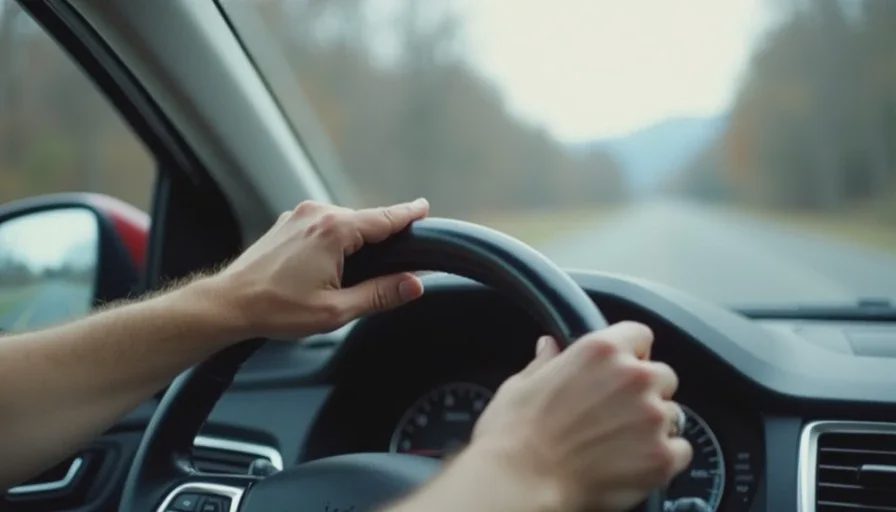
Every one of these scenarios shares two traits:
Time sensitivity – a delay of a few seconds can compromise safety or at least create a stressful moment.
Muscle memory – physical buttons allow you to develop a mental map of the interior. You can reach, feel, and actuate without glancing away.
Touchscreens are excellent for non‑critical, configurable, or infrequent tasks: browsing playlists, setting a navigation destination, or adjusting ambient lighting. They are terrible for core driving controls – the things you need to adjust without negotiation.
The OEM Excuses – and Why They're Weak
“We can update layouts via OTA.” – Great, but I don't want my hazard light button to move after an update.
“Physical buttons cost money and weight.” – A few buttons add negligible weight and cost compared to the premium price of a modern EV.
“Younger buyers prefer screens.” – Maybe, but when they're in a crash because they were looking at a screen instead of a physical button, they'll change their mind.
What I'm Proposing – The Kill Switch Concept
I'm not asking for a full physical dashboard of 50 buttons. I'm asking for a minimum set of physical controls that cover the 12 scenarios above – a “kill switch” that bypasses the screen for these critical functions. It could be a series of dedicated buttons, a rotary dial with configurable presets, or even a set of programmable buttons that the user can assign.
Some OEMs are already doing it: Audi's physical air‑conditioning panel, BMW's iDrive controller, Mazda's commander knob. They prove that you can have a modern screen and tactile fallbacks.
Your Turn – Prove Me Wrong
I've listed my 12. But I know I've missed some: maybe the “unlock charge cable” button, or the “trunk release” when your hands are full, or the “panoramic roof sunshade” toggle. Add them below.
If you think touchscreen‑only is acceptable, I challenge you to defend it. But please, bring data – show me that your eye‑off‑road time for a climate adjustment is under 2 seconds in a motion‑unstable environment. Or show me a study that proves haptic feedback on glass is equal to physical buttons (hint: it isn't).
I'll compile the community's additions into a “Universal Kill‑Switch Manifesto” and send it to every OEM we can find. Let's make driving safer, one button at a time.
No letters yet — be the first guest to write.